
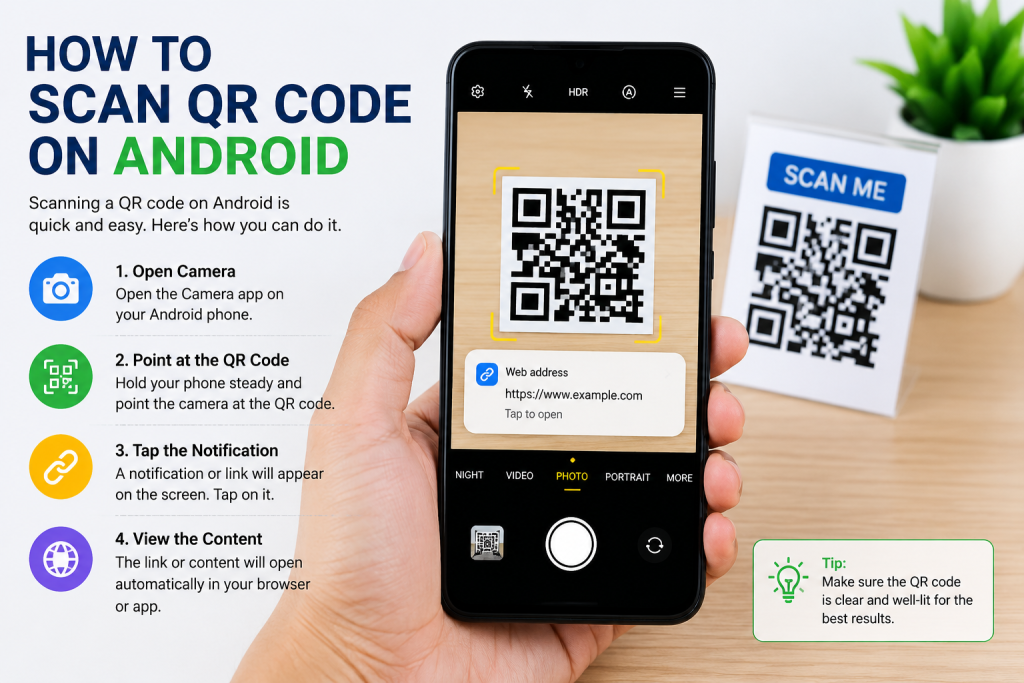
QR codes are used quite extensively these days. They are seen on restaurant tables, payment counters, websites, product packaging, event tickets and even business cards. You don’t need to type a lengthy website address or type in the information yourself — you can just scan a QR code using your Android phone and get what you need instantly.
When the QR code is known, some people think it’s so simple to scan them. If you are new to Android and/or your phone isn’t scanning correctly, the process can appear confusing. Additionally, each brand of Android has its own settings for cameras, which can also be slightly different, further confusing.
Luckily, a great deal of the existing Android mobiles have the capability to scan QR codes without the need for any additional applications to be installed. In this post, you will know how to scan QR code on Android, how to do it if it doesn’t and how to be safe while scanning QR codes!
What Is a QR Code and How Does It Work?
A QR code, short for “Quick Response code,” is a type of square barcode that stores digital information. Once your cell phone camera reads the code, your phone will convert it into something useful right away, like a link to a website, a contact, Wi-Fi password, a payment page, or an app download.
Unlike the conventional bar code, which can contain only a small amount of information, QR code could contain much more. Hence, they are popularly used by businesses and applications in the present days.
For example, you could scan a restaurant’s QR code and open the restaurant’s menu in your browser. The payment QR codes might be available in your banking/mobile wallet app automatically and payment details might be pre-filled.
The process is created to save time and lessen manual typing.
How to Scan QR Code Using the Android Camera
The built-in camera app is the simplest method of scanning a QR code on Android. This feature is already supported automatically by most of the Android phones that have been released in the recent past.
First, just open your phone’s camera and aim it at the QR code. Please ensure that the whole code displays clearly on the screen. Your phone will usually detect the code within a couple seconds and display a notification or a link.
Tap on the notification once it appears and access the content associated with the QR code.
The capture button or photo is not usually required to be pushed, or the picture taken. The scanning is done automatically and in real time.
Check back to the camera and QR code to see if anything appears, if not try to move the distance between the camera and QR code. In some cases, simply moving closer or farther from the object will allow the camera to focus. Lighting is also a huge factor in making it a great space. The QR code could be hard to read or not scan at all.
Many users believe that the camera is broken when it does not scan immediately, but in many instances it is a focus or lighting problem.
Why QR Scanning May Not Work on Some Android Phones
QR scanning is a thing of the past these days, but it’s not that all Android phones operate in the same fashion. The QR scanning feature may not be available in the camera app or the camera app may be configured so that QR codes will not be scanned.
For example, Samsung phones have a QR scanner which is usually disabled in the camera settings of the smartphone. When it comes to scanning, it’s pretty standard for Google Pixel phones to integrate Google Lens.
If your device’s camera is not detecting QR codes, check if it has been updated. New camera software may help with improved scanning and compatibility.
It is also advisable to clean camera lens. QR codes can be difficult to recognize even if there is a small smudge.
Another frequent problem is the QR Code is damaged or poorly printed. Your phone may not read the code properly if it is blurry or partially covered by something, or if the code on the phone is blurry or scratched.
Using Google Lens to Scan QR Codes
Google Lens is one of the best QR code scanning apps for Android. Many Android phones in fact already have Google Lens technology built into the camera app.
Google Lens is an AI-powered visual search tool by Google. It can identify QR codes, text, products, landmarks and even translate languages with your camera.
Now you can open Google app or Google Lens app on your Android device to use it. Press the Lens button then hold up to the QR code. Google Lens should be able to identify the code within seconds and show the relevant information.
Google Lens is popular among many users as it functions fine even when the default camera app fails to work. It can even read QR codes from a screen shot or stored image, a very handy feature.
If you receive a QR code via WhatsApp or email, for instance, then you don’t need a second phone to scan it. The image is easily accessible in Google Photos and you tap the Lens icon.
This can be particularly useful when scanning Wi-Fi sharing codes, event tickets or online payment codes from your device.
How to Scan a QR Code From a Screenshot or Image
Many believe that QR codes must be scanned with a live camera camera, but with an Android phone, QR codes can be scanned from pictures stored on a phone.
It helps if the QR code is already on your cell phone. Maybe you have been given a screen shot by a friend or maybe you’ve been given a digital ticket online.
You can scan it by opening the image in Google Photos. Search for Google Lens icon towards the bottom of the screen and tap on it. Google Lens will automatically recognise the QR code.
If detected, click the presented link or information to proceed.
This technique eliminates the need for another device and is time-saving.
Staying Safe While Scanning QR Codes
There are benefits to using QR codes, but they are not always secure. Since QR codes can be used to direct someone to a website or to trigger an action at click, scammers can also create QR codes that trick their target.
A popular scam is the swapping of real QR codes in public areas for fake ones. A person could assume that they are paying to park or opening a restaurant menu, but the QR code sends them to a scams website.
Always look at the preview of the website’s address before clicking on any link. If it appears suspicious, misspelled, or it doesn’t relate to what you expected then don’t click it.
Another tip is to never enter your personal data, banking information, or password immediately after scanning an unknown QR code.
One of the good practices is to keep your Android device updated. Security updates safeguard your phone against malicious sites and damaging software.
While most QR codes are safe, there is a chance of avoiding big issues if it is done with caution.
Do You Need a QR Scanner App on Android?
If you are most Android users, the answer is no, as most of them already have a QR scanner in their camera app, or in Google lens. There’s no need for a separate QR scanner app.
If your older Android phone doesn’t have built-in support, however, you might need to install a dedicated scanner application.
If you choose to install a QR scanner app, do so carefully! There are some free scanners that have too many ads, permissions or even security issues.
A good application includes great reviews, updates frequently and is easy to give permissions. Refuse apps which request access, when it is not needed during the scanning process, like contacts or microphone access with no reason.
Overall, the built-in scanner provided by the phone is more secure and easier to use.
Common Mistakes People Make When Scanning QR Codes
The most common error is that people move the camera too fast. QR scanning is most successful when the phone is held still for a few seconds.
One of the other missteps is taking a bad camera shot. The problem is that even the high-end camera can not read codes in low light.
The phone is also held too close to the QR code by some users. If the code is blurry on the screen, gently move the phone further back so as to obtain a clear image of the code.
Some people don’t bother with suspicious links because they are not aware of what they are and because scanning seems like a no-risk, automated process. QR codes must be used with caution however, particularly in public settings.
Last but not least, many users install extra scanner applications when the Android phone provides them with the capability to scan documents natively.
Final Thoughts
Scanning QR code on Android is actually quite simple. There are a lot of Android phones that already have a built-in app for scanning QR codes, and if you need to, Google Lens is a great alternative.
After once you know how to use QR codes, they can be very useful in everyday life. They make payments, website access, sharing of Wi-Fi, digital menus, tickets and many items in everyday life much more simple.
The important thing is to know how to scan QR codes safely, and to grasp why sometimes scanning may fail. Most of the time, minor fixes such as lights, camera lens clean, or camera settings (QR scan) can resolve the issue rapidly.
The QR code is increasingly becoming a popular way to transmit information, and the ability to scan it correctly is becoming a must-have smartphone ability. By following this step, in just a few few seconds your Android phone can connect you with information instantly.